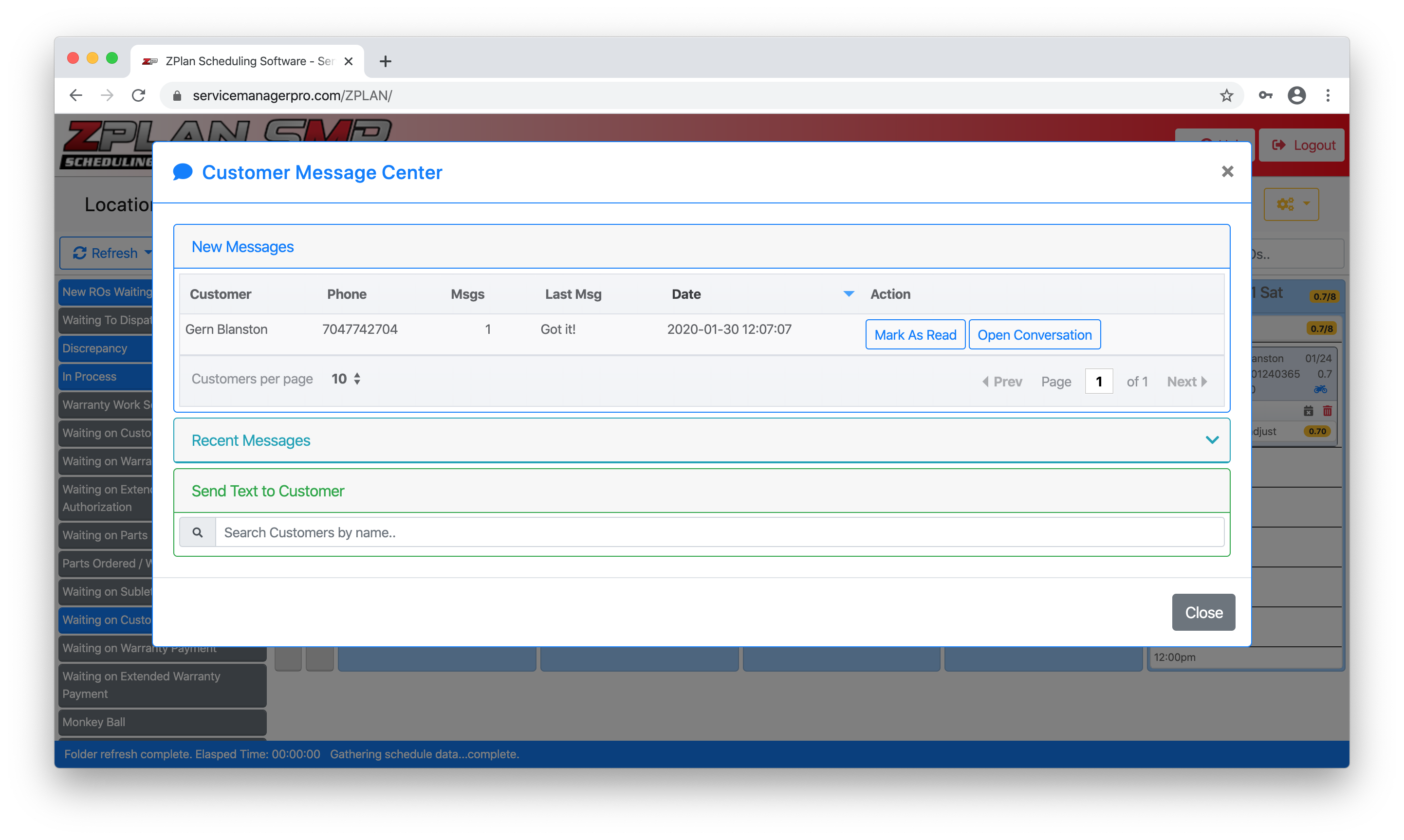
Twilio Messaging Help
The following guide will walk you through each step in setting up communication between ZPlan and Twilio.
Please read each step carefully before proceeding.
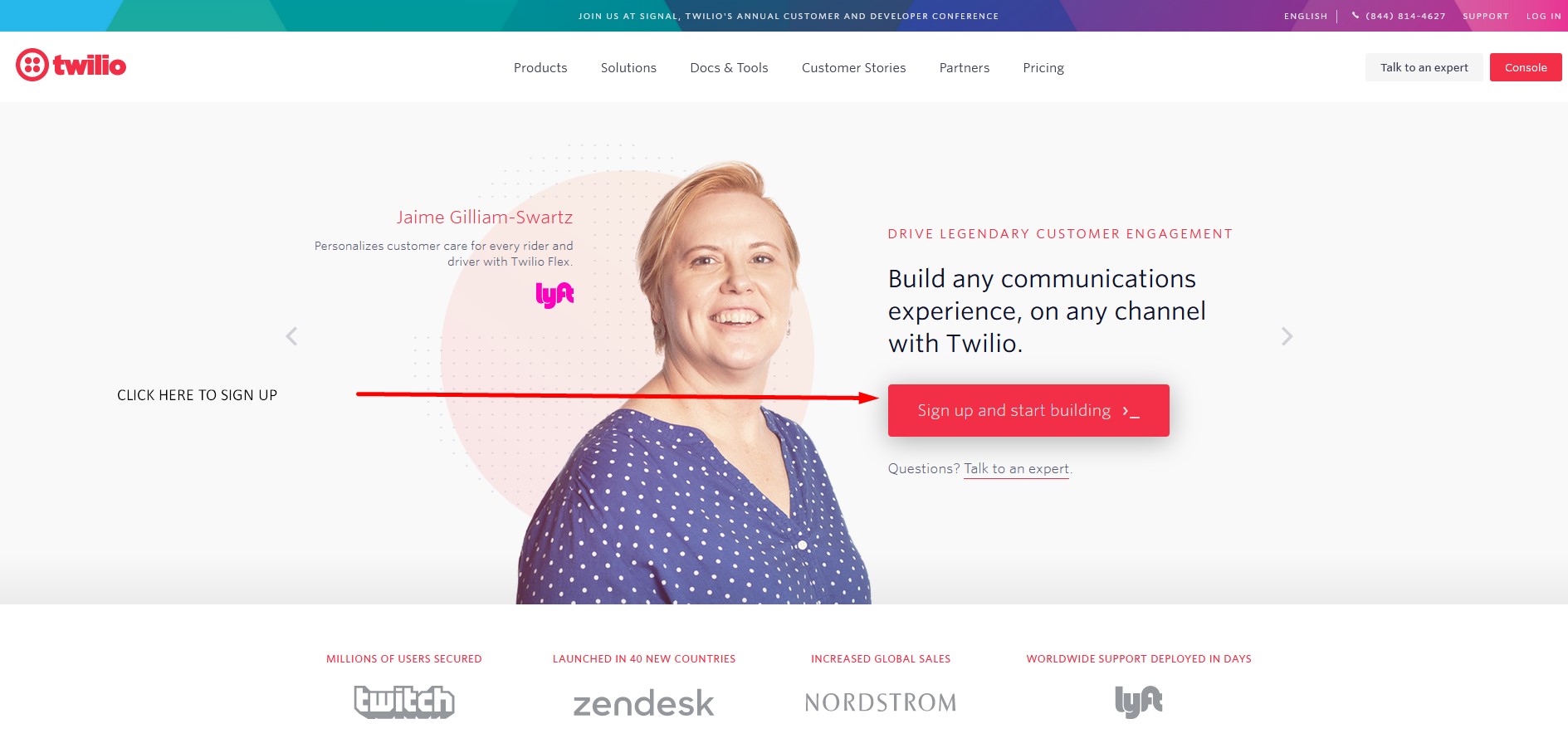
Step 1
Go to www.Twilio.com.
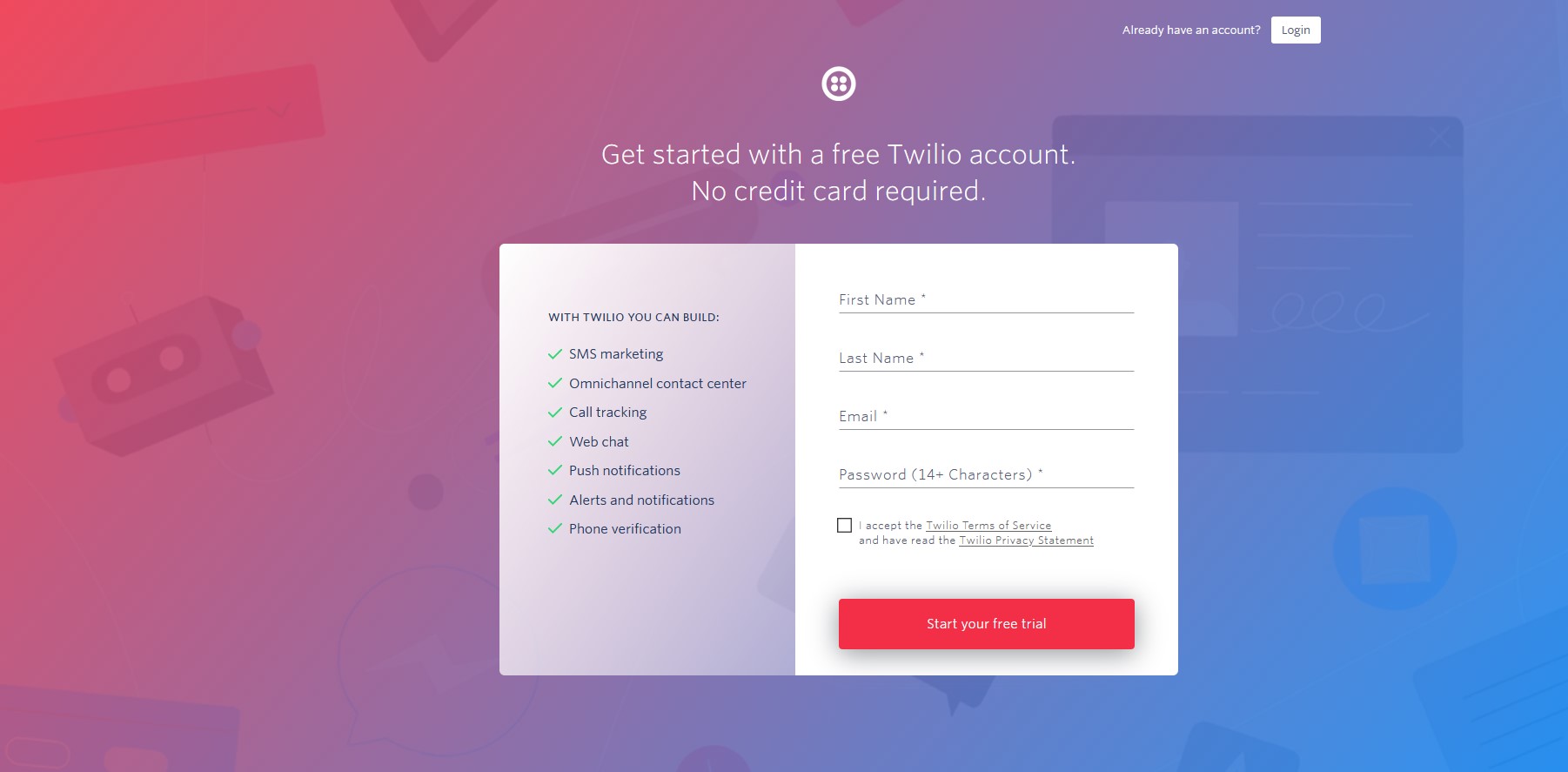
Step 2
Create a Twilio Account.
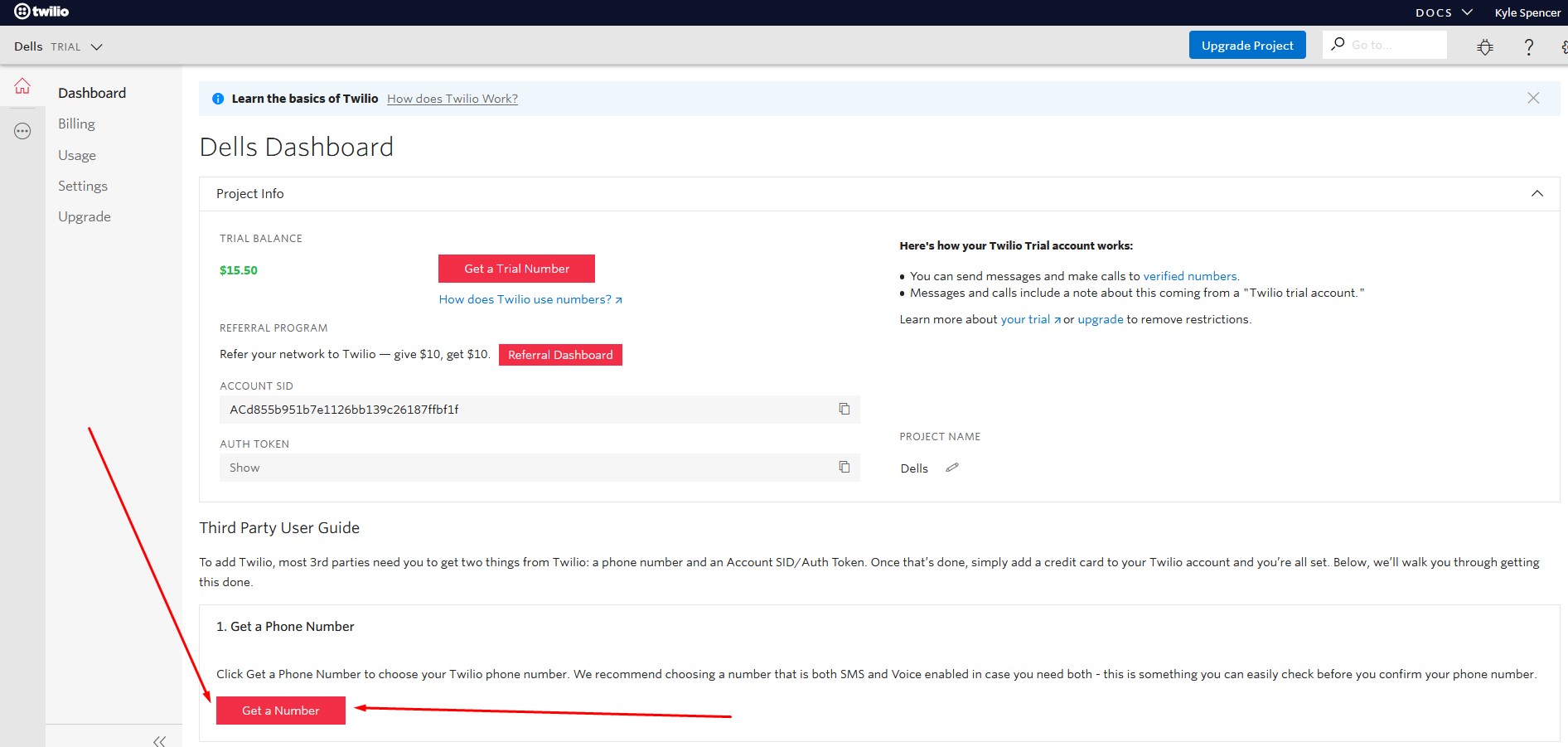
Step 3
Choose "Get a Number".
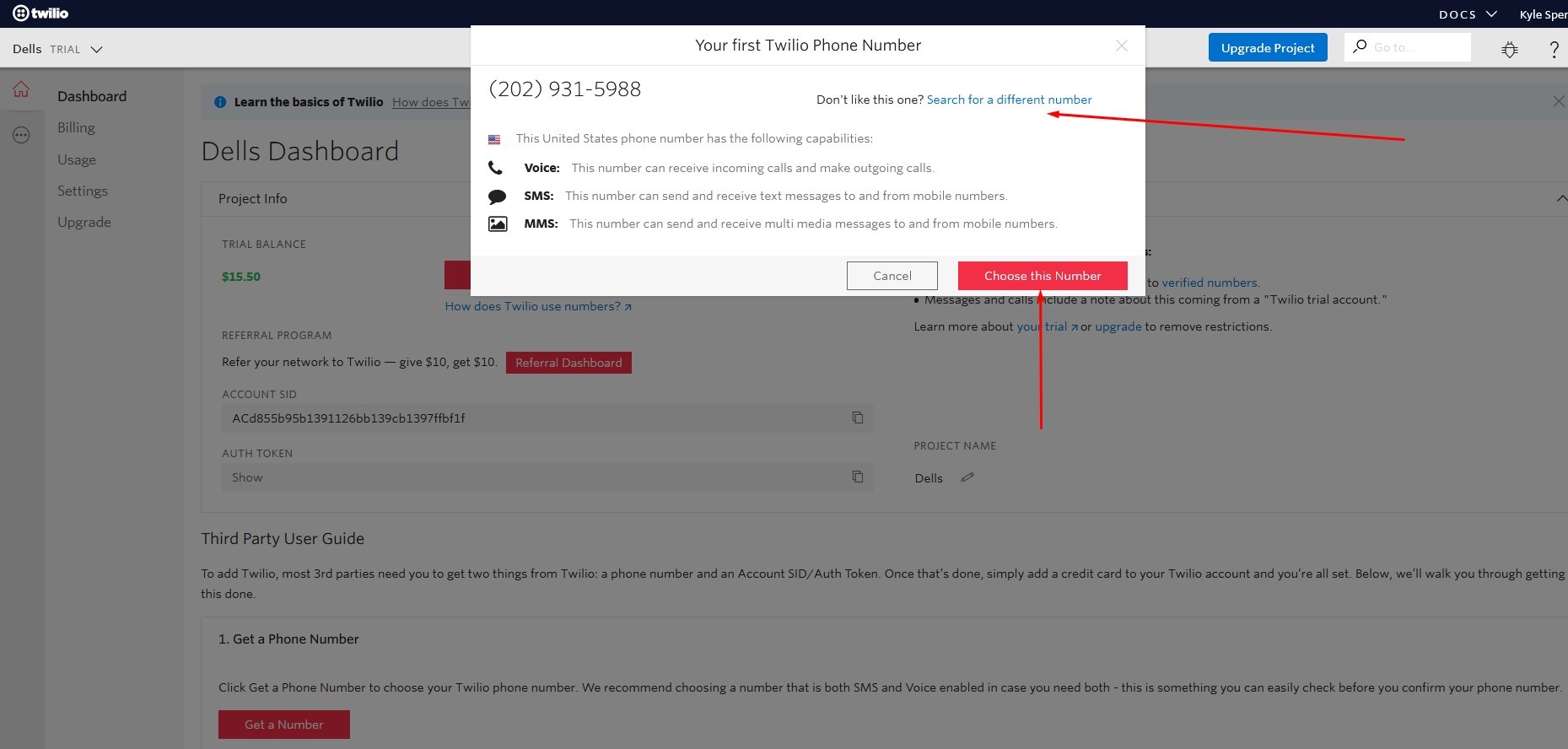
Step 4
Choose the default Twilio Number or Search for a local number (recommended).
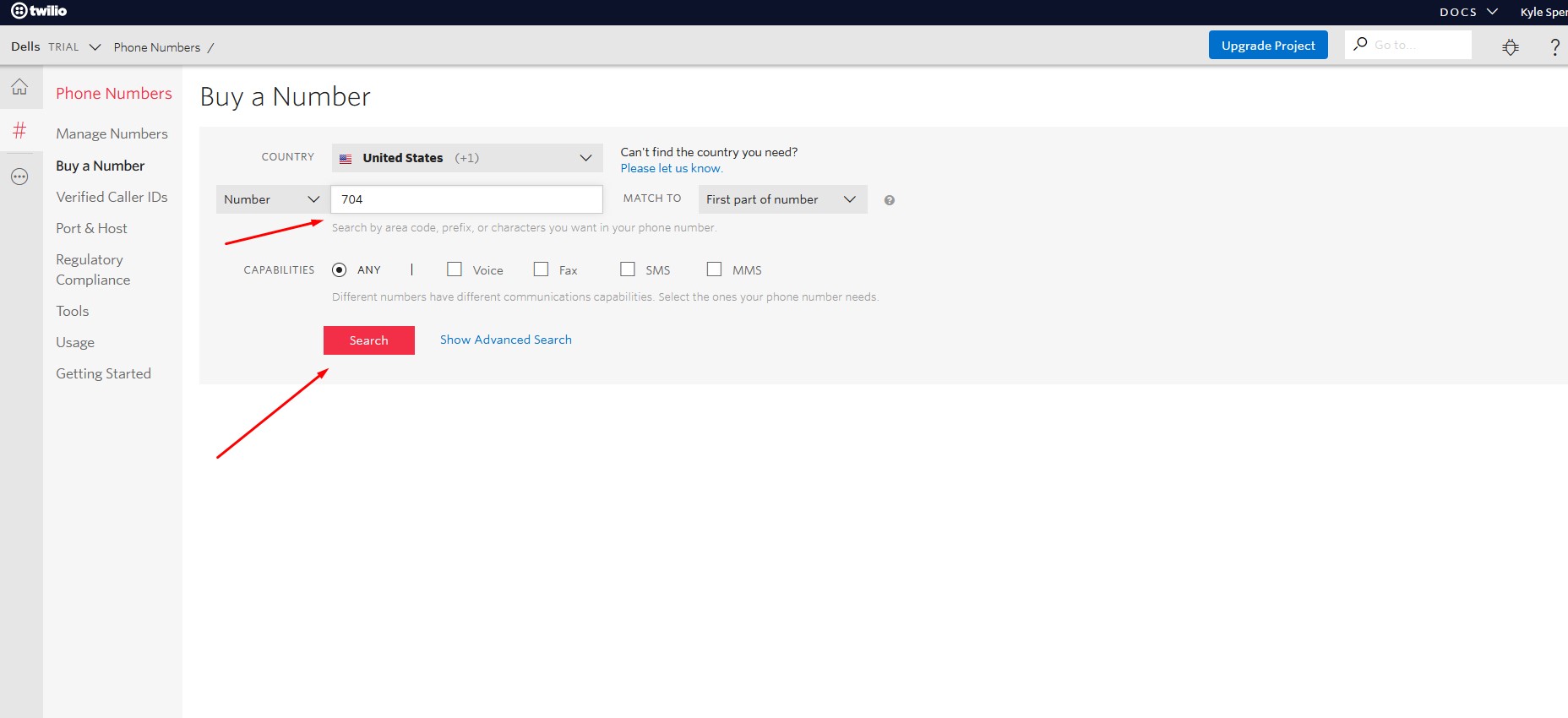
Step 4
Search for a local number example.
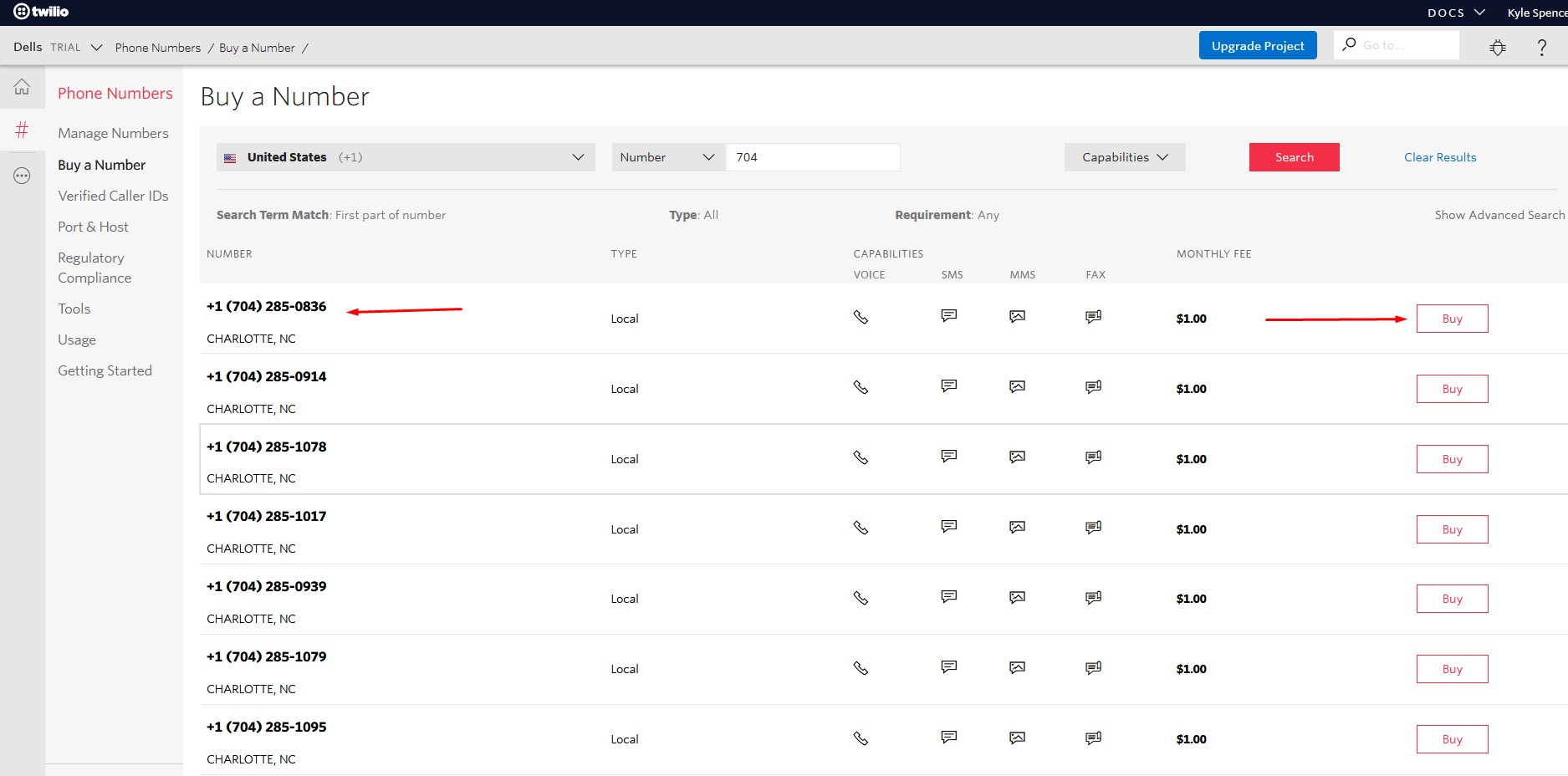
Step 5
Select a number and click “Buy”
Please write down this phone number as you will need this in step number #21.
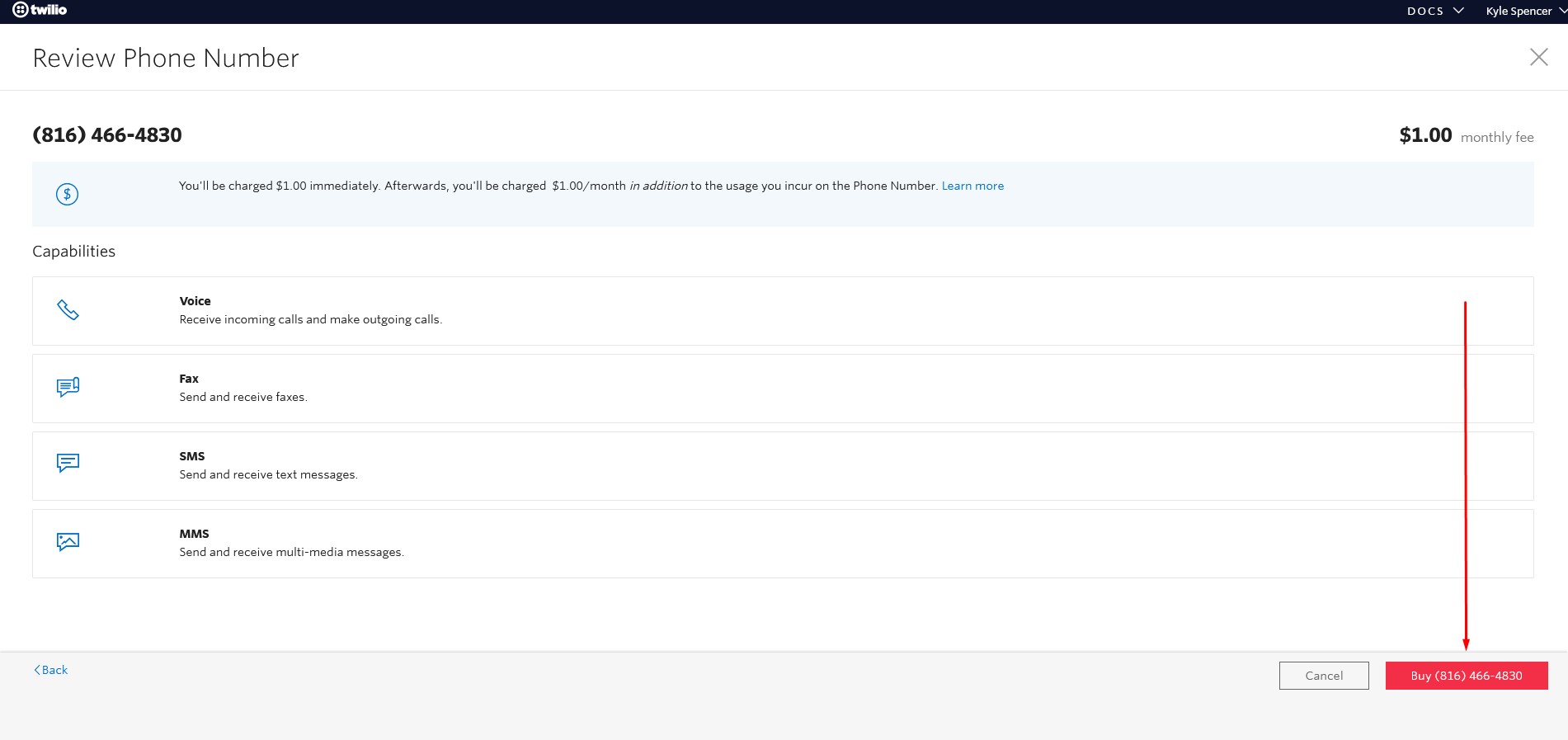
Step 6
Review and purchase your Number.
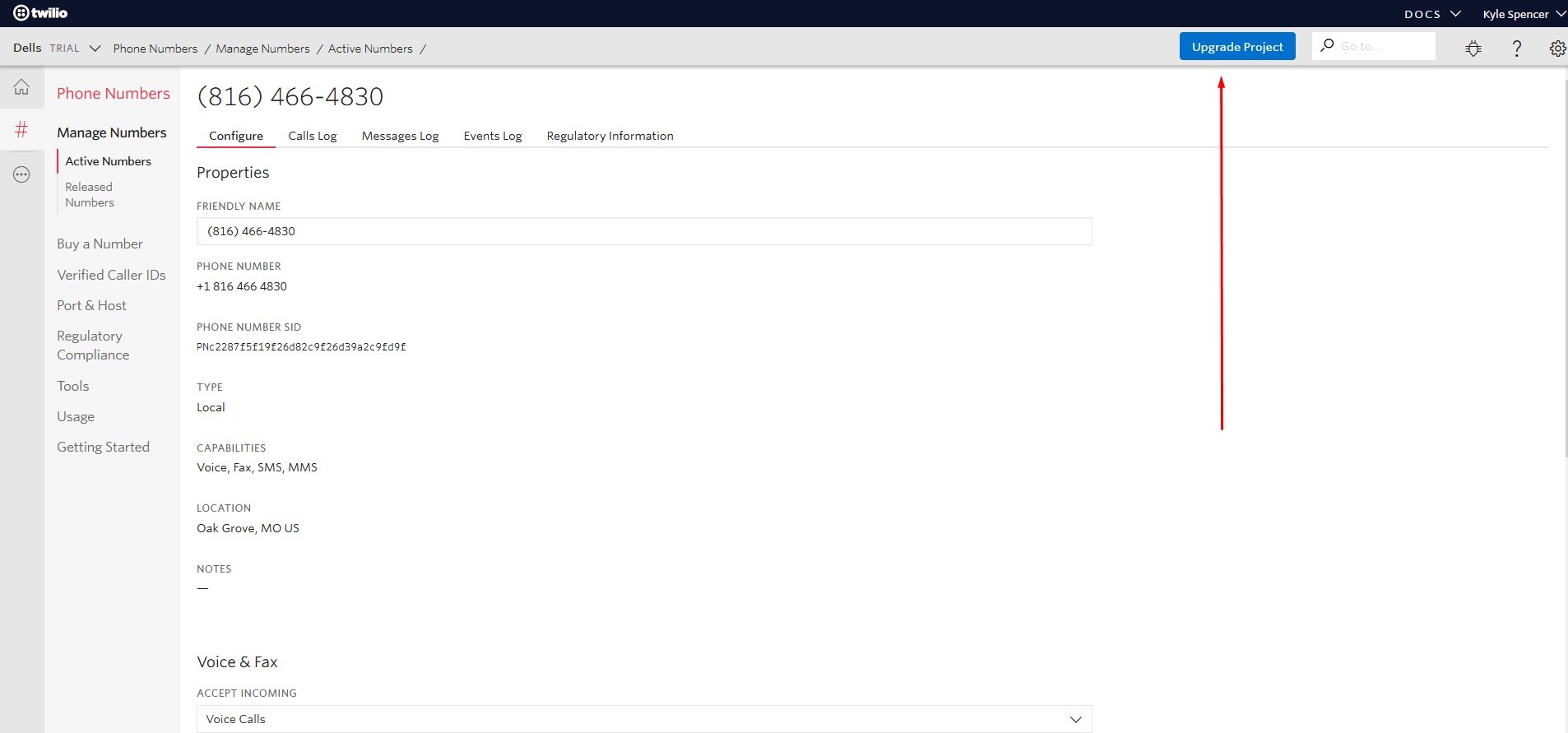
Step 7
Upgrade your project.
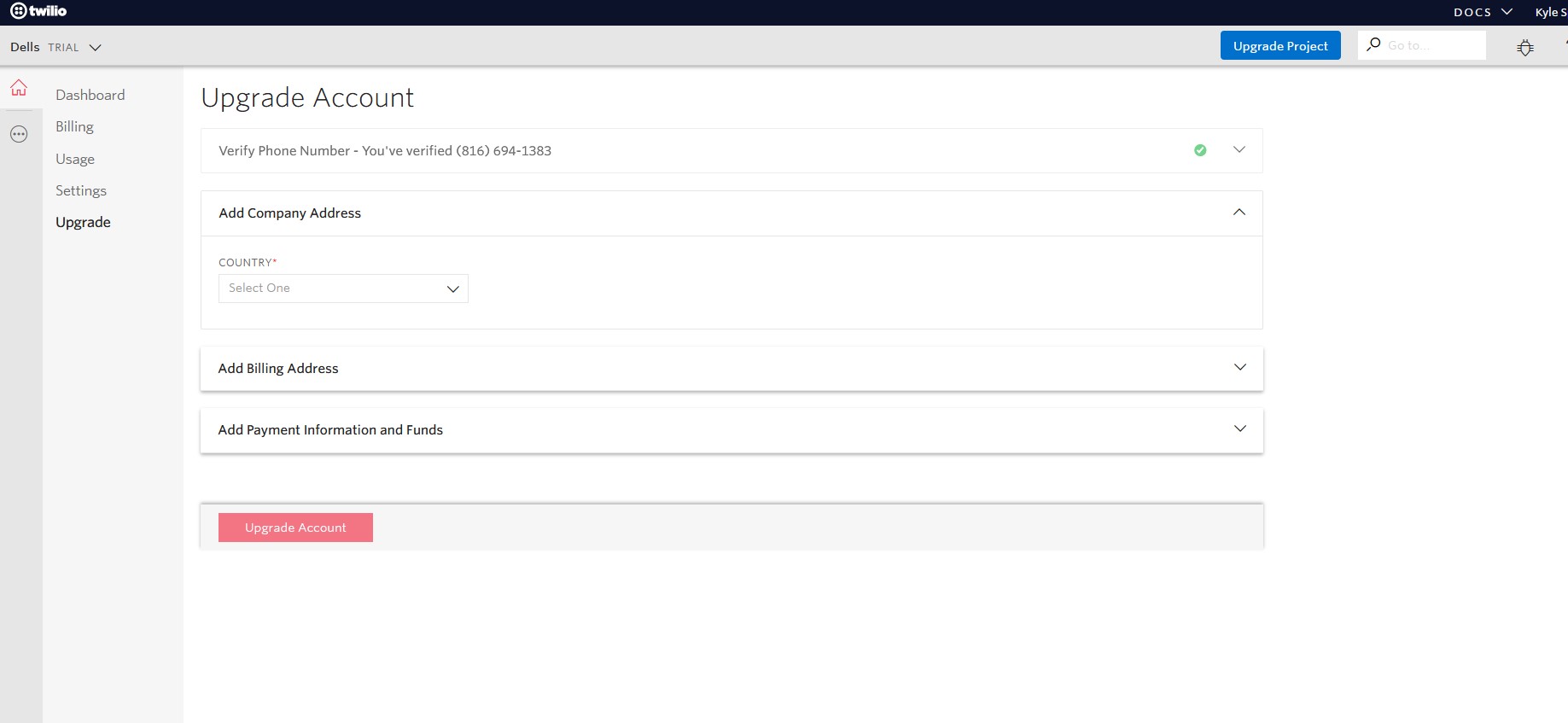
Step 8
Enter and save your payment information.
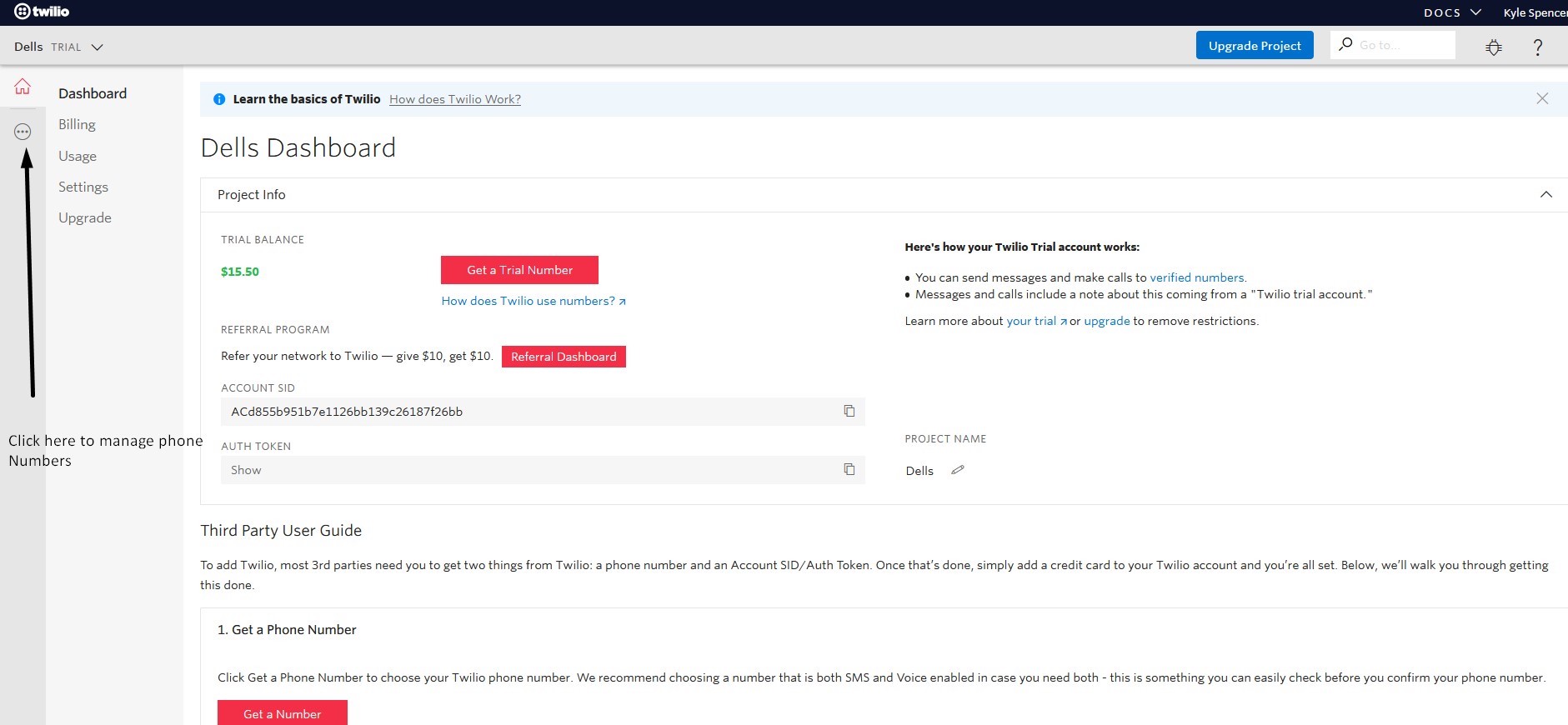
Step 9
Click the dots () in the upper left hand corner to expand menu choices.
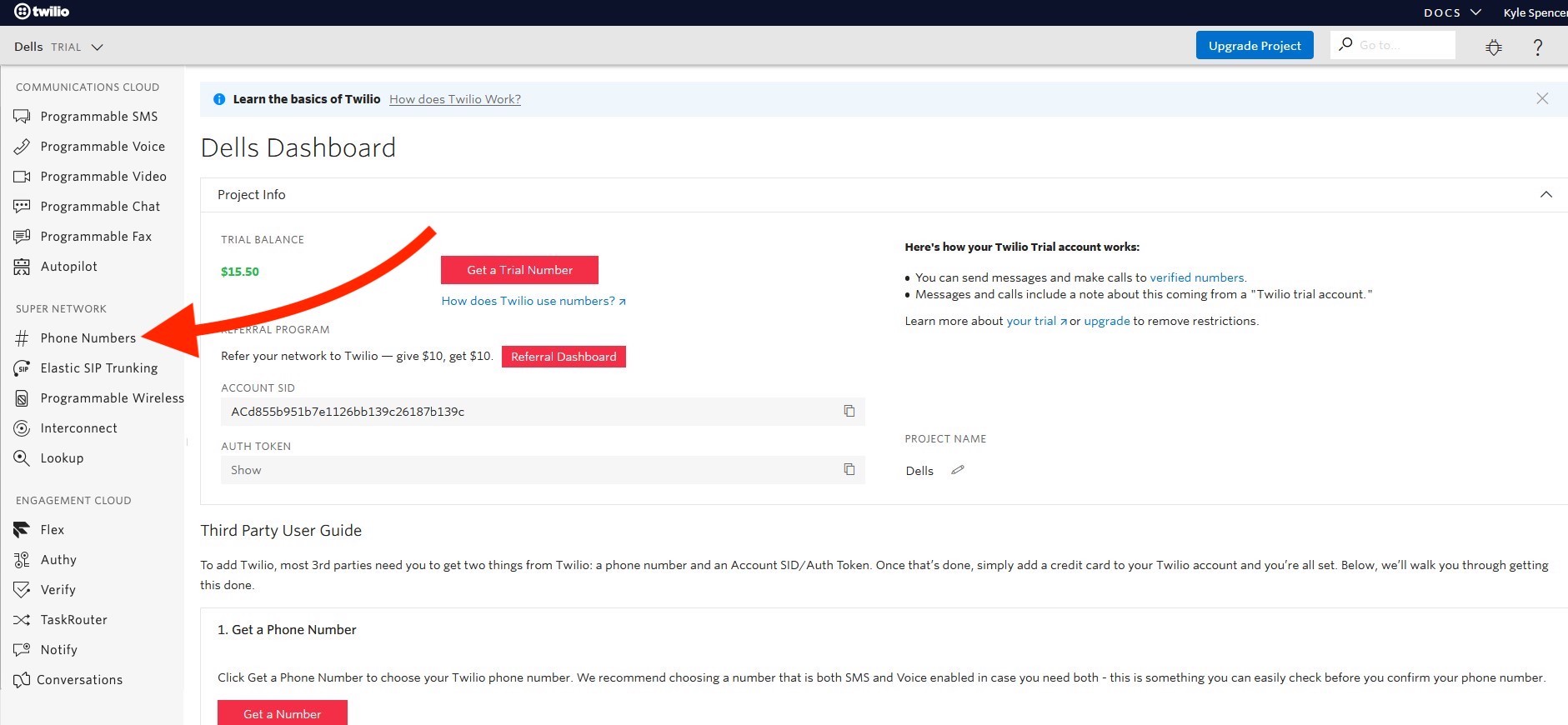
Step 9
Under the menu section "SUPER NETWORK", click on "# Phone Numbers" to manage numbers.
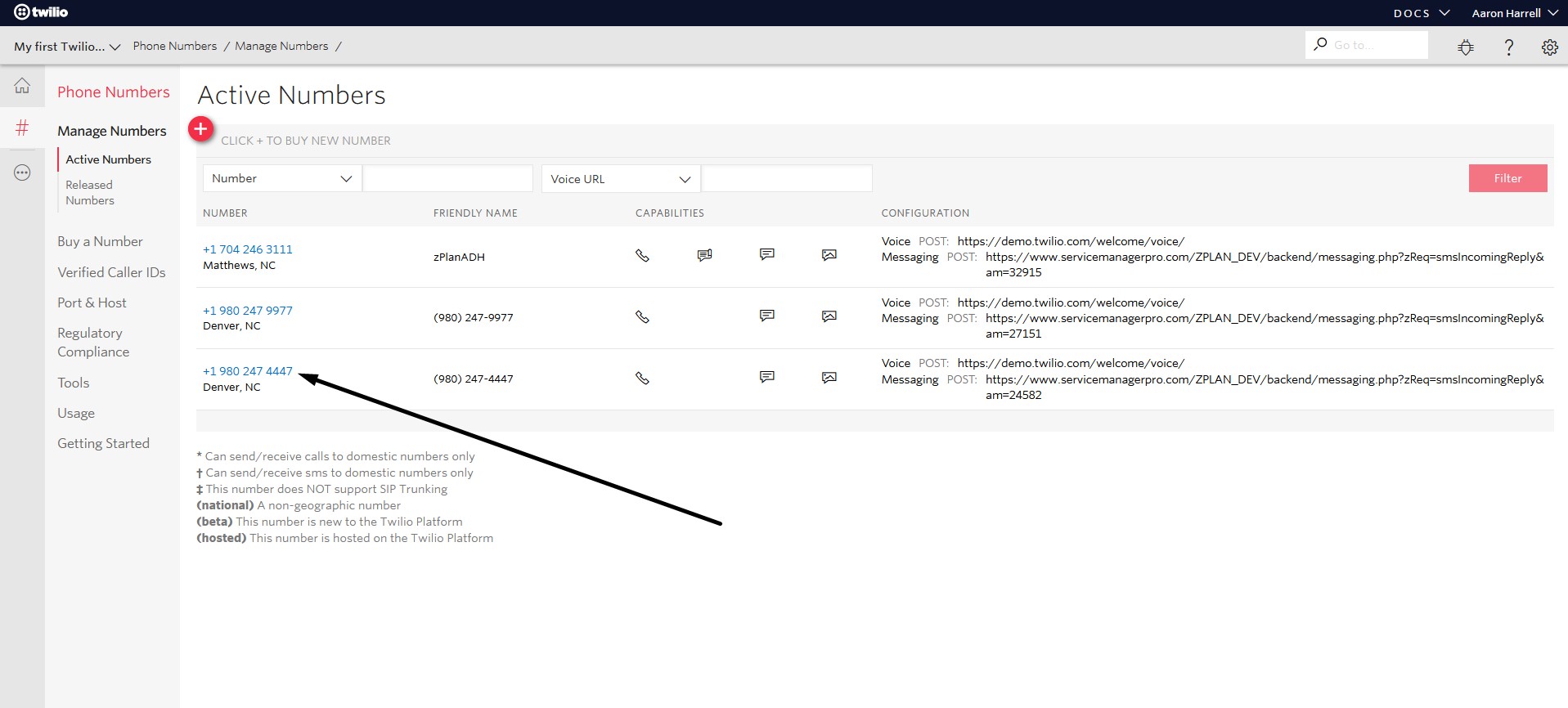
Step 10
Click the phone number you want to manage.
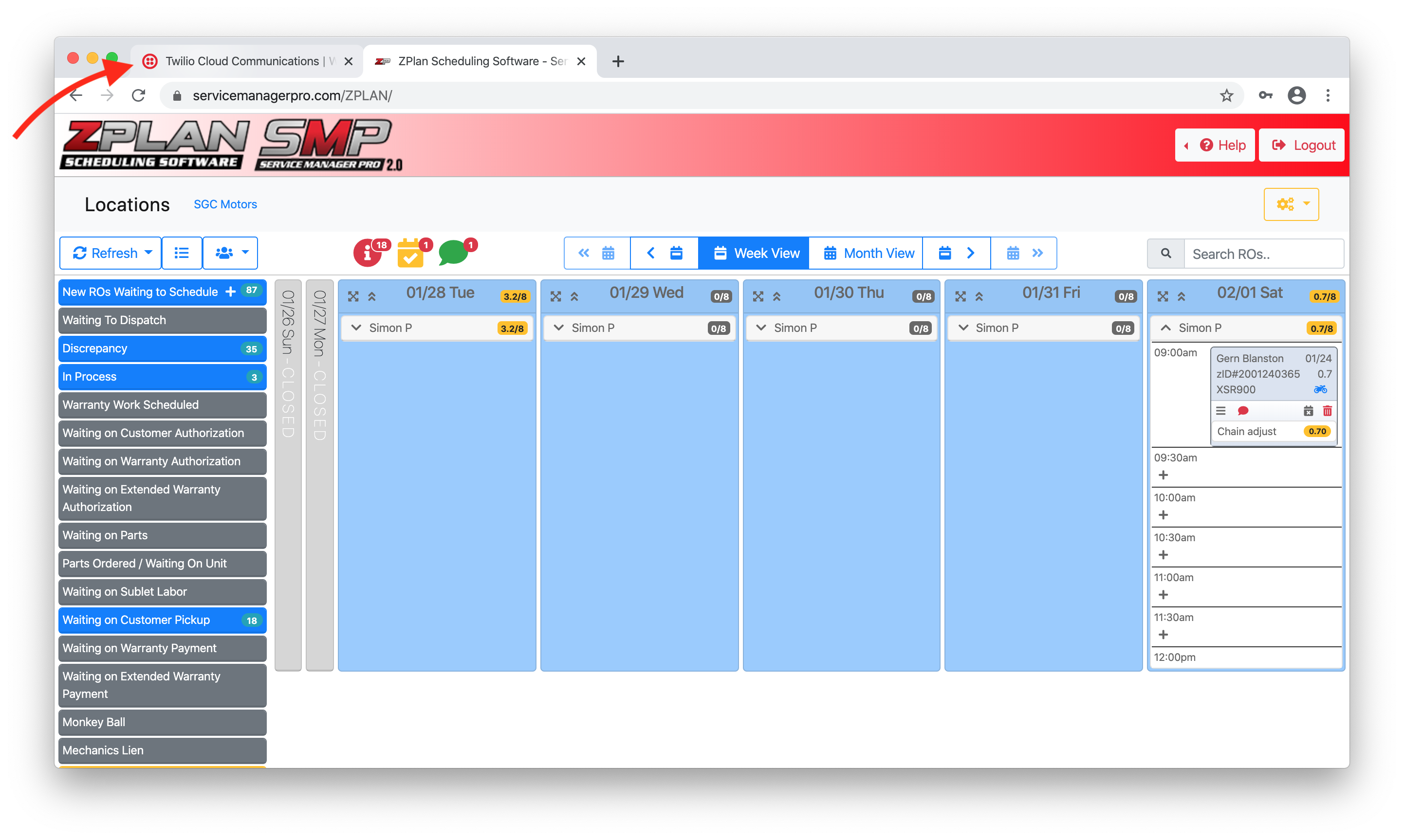
Step 11
Go to ZPlan IN A NEW BROWSER TAB OR NEW BROWSER WINDOW!!
You must leave Twilio open as you will need to come back to Twilio after step #14.
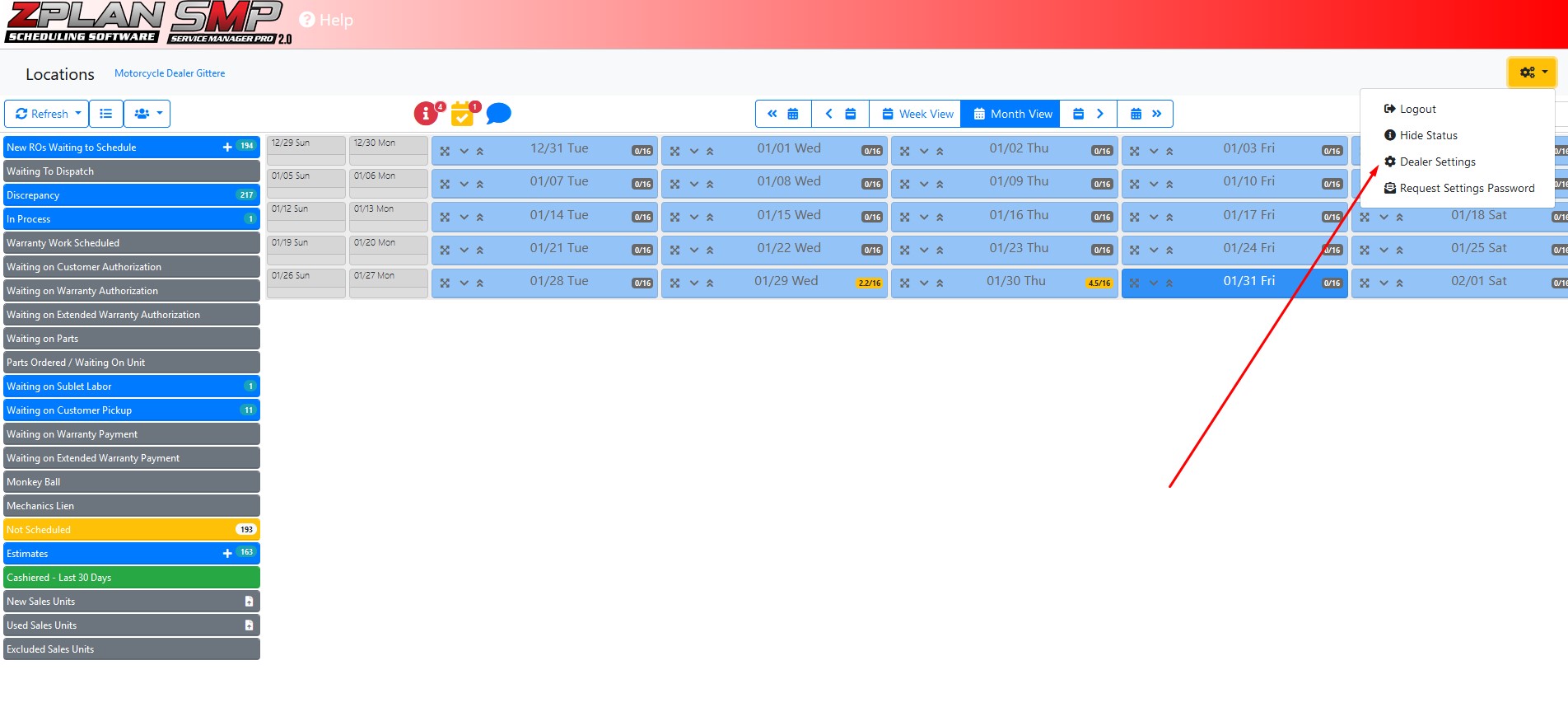
Step 11
In ZPlan click on the Settings Gear in the top right corner and select Dealer Settings.
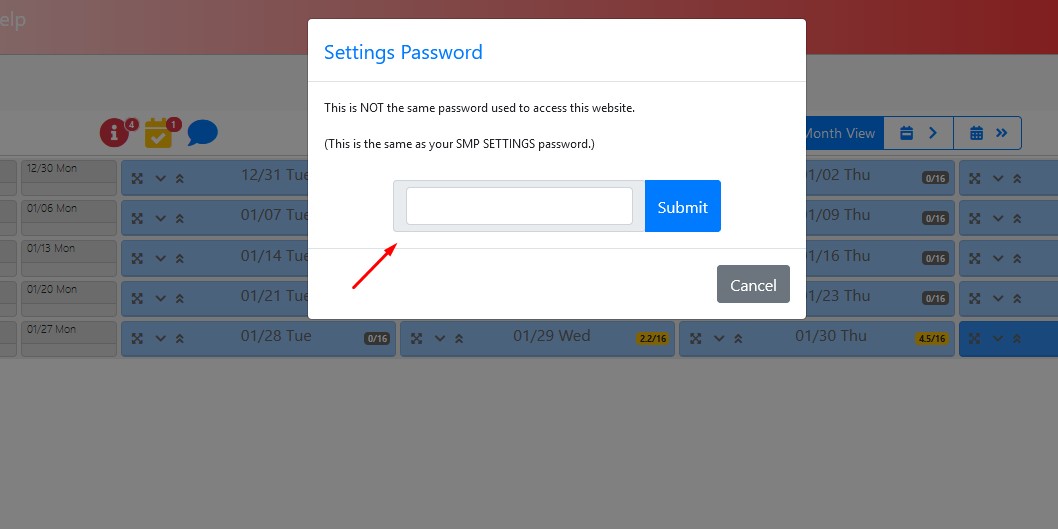
Step 12
Enter your Dealer Settings Password.
Note: This is different than your login password.
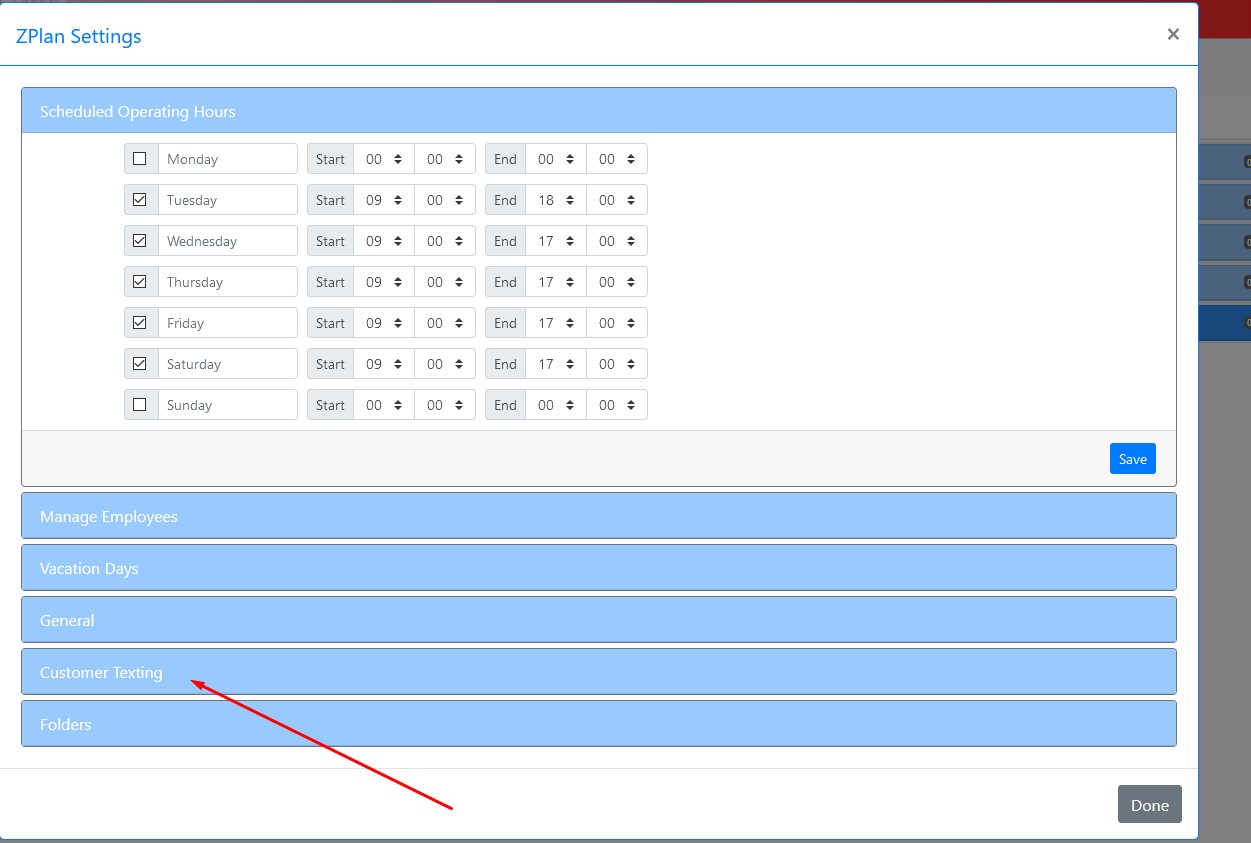
Step 13
Click on Customer Texting Section.
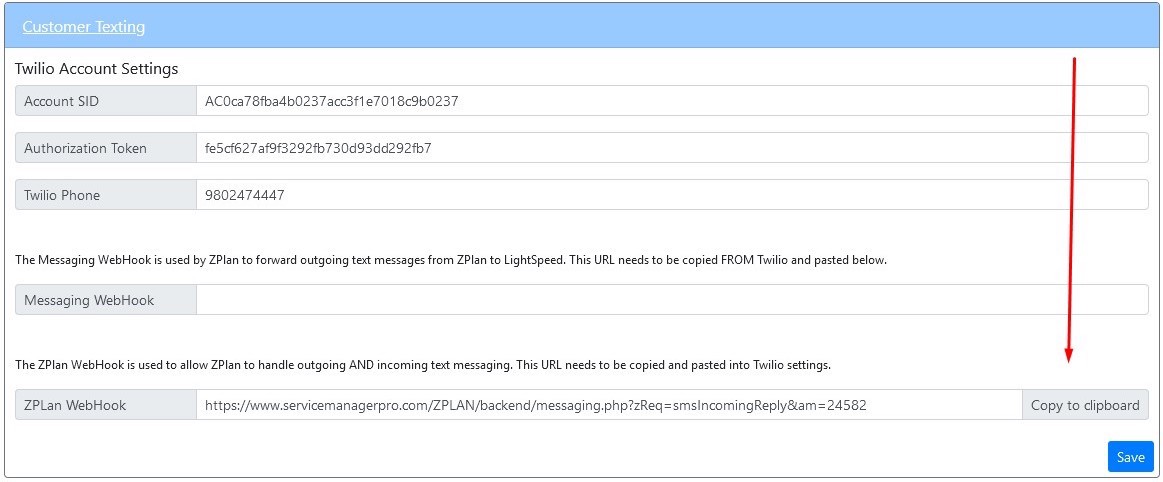
Step 14
Click copy to clipboard.
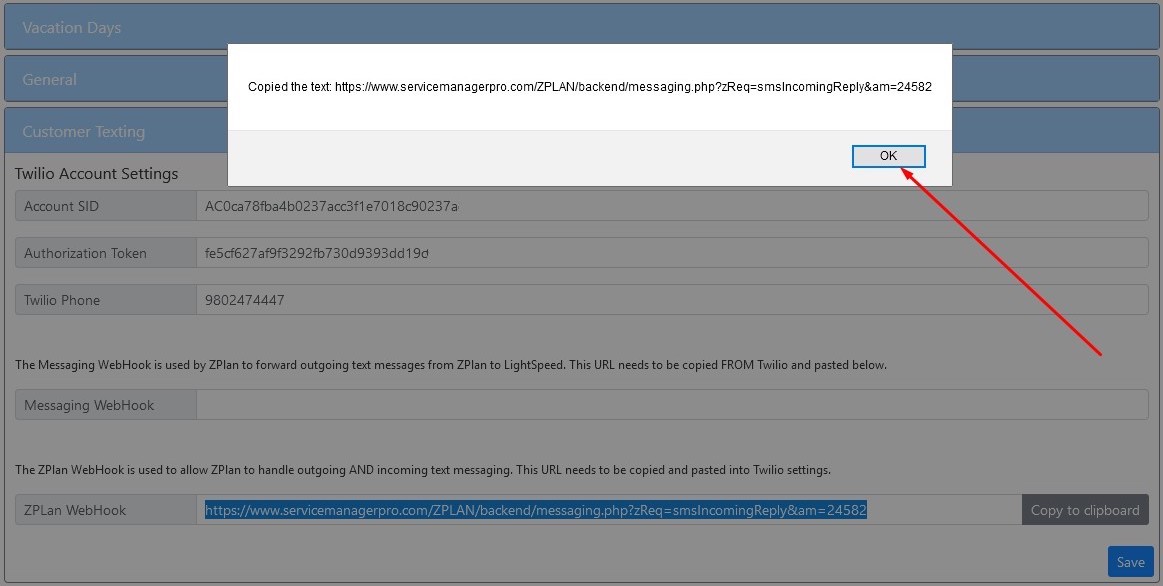
Step 14
Click OK to acknowledge copy to clipboard.
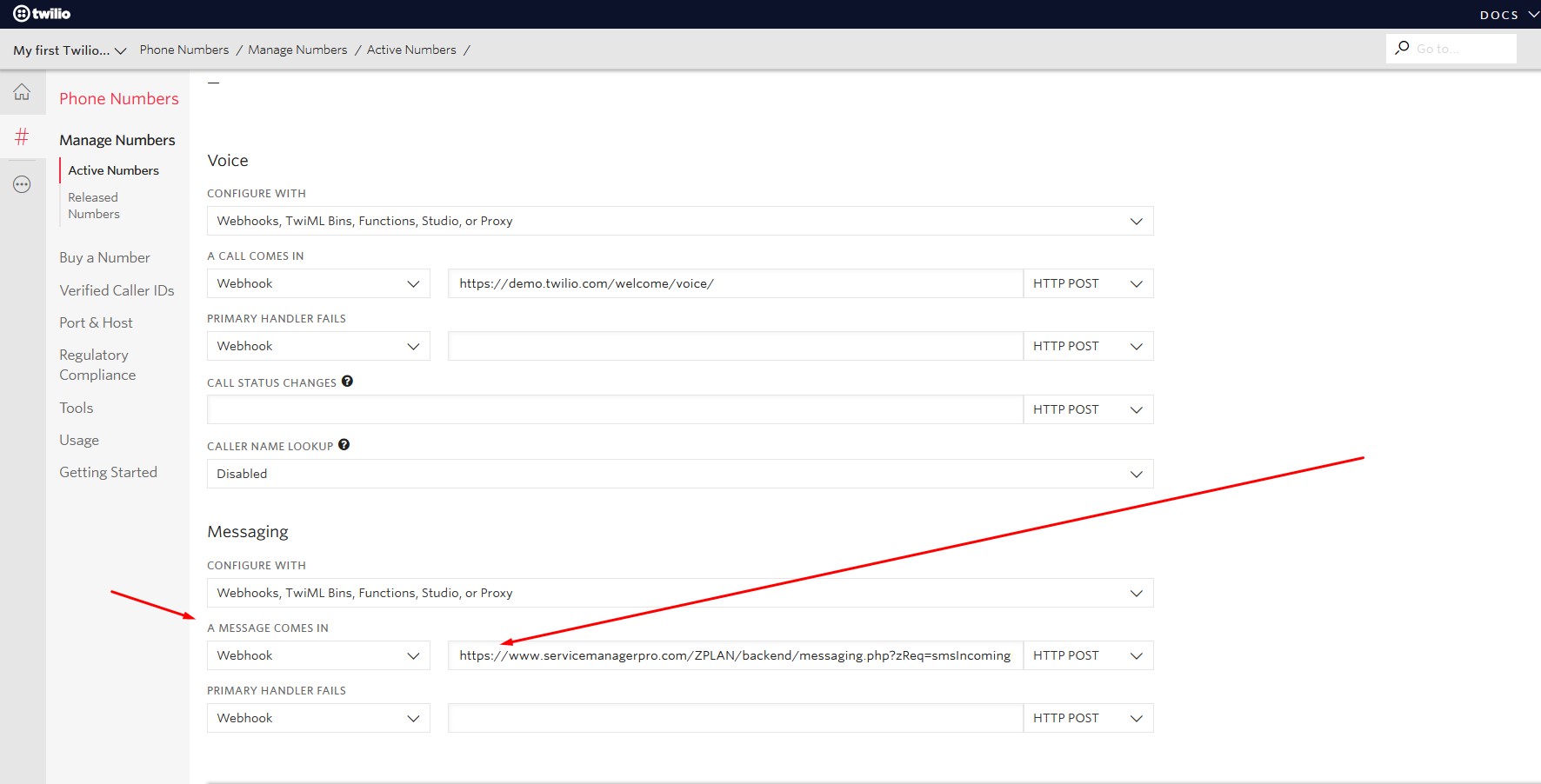
Step 15
LEAVE ZPLAN OPEN in the tab or browser window. You will need to come back here after step #18.
Go back to the Twilio browser window or tab and scroll to the bottom of the screen and under Messaging, find the “A Message Comes In” textbox and right click and paste in the information you copied from ZPlan.
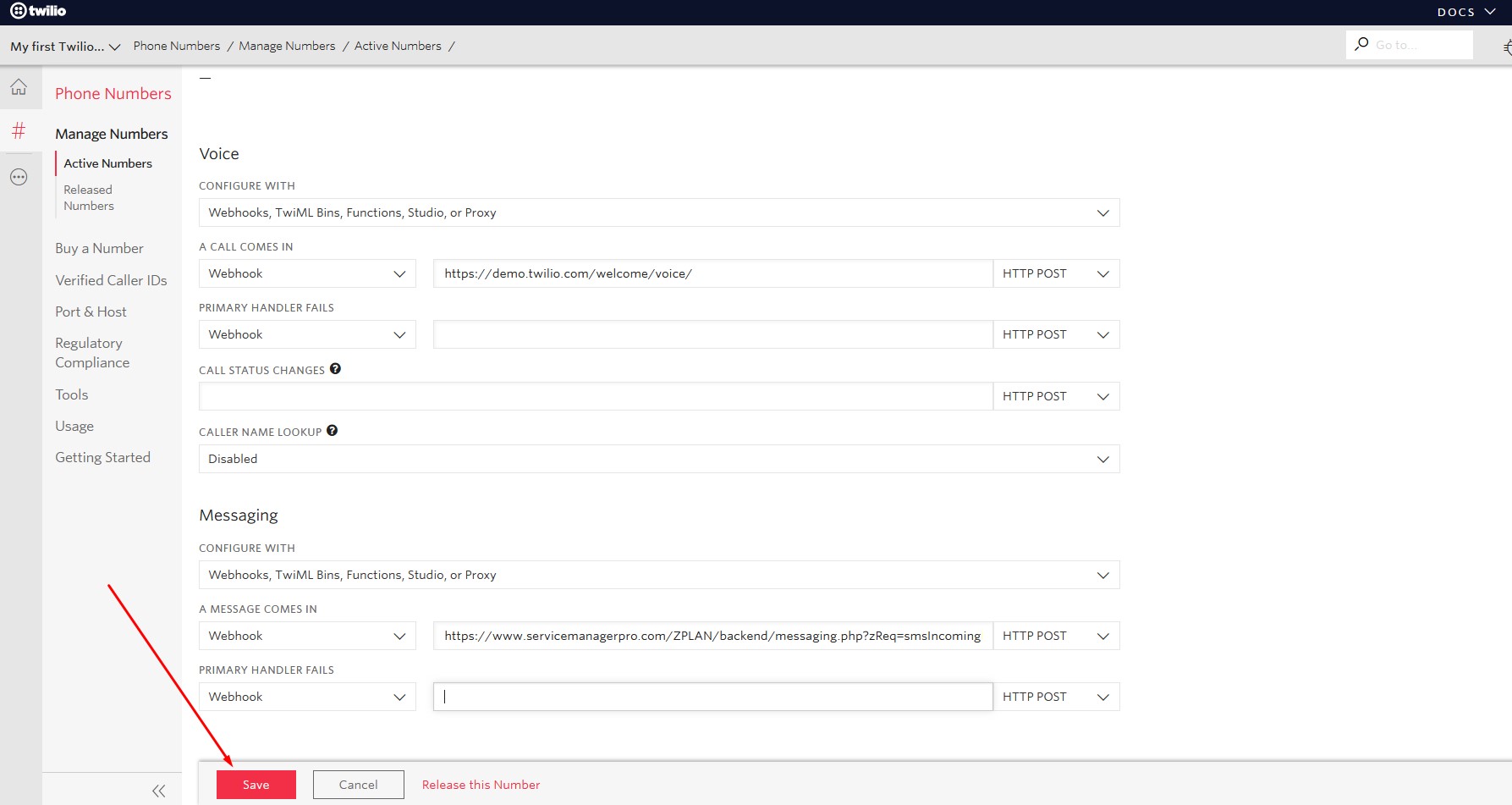
Step 16
Click Save.
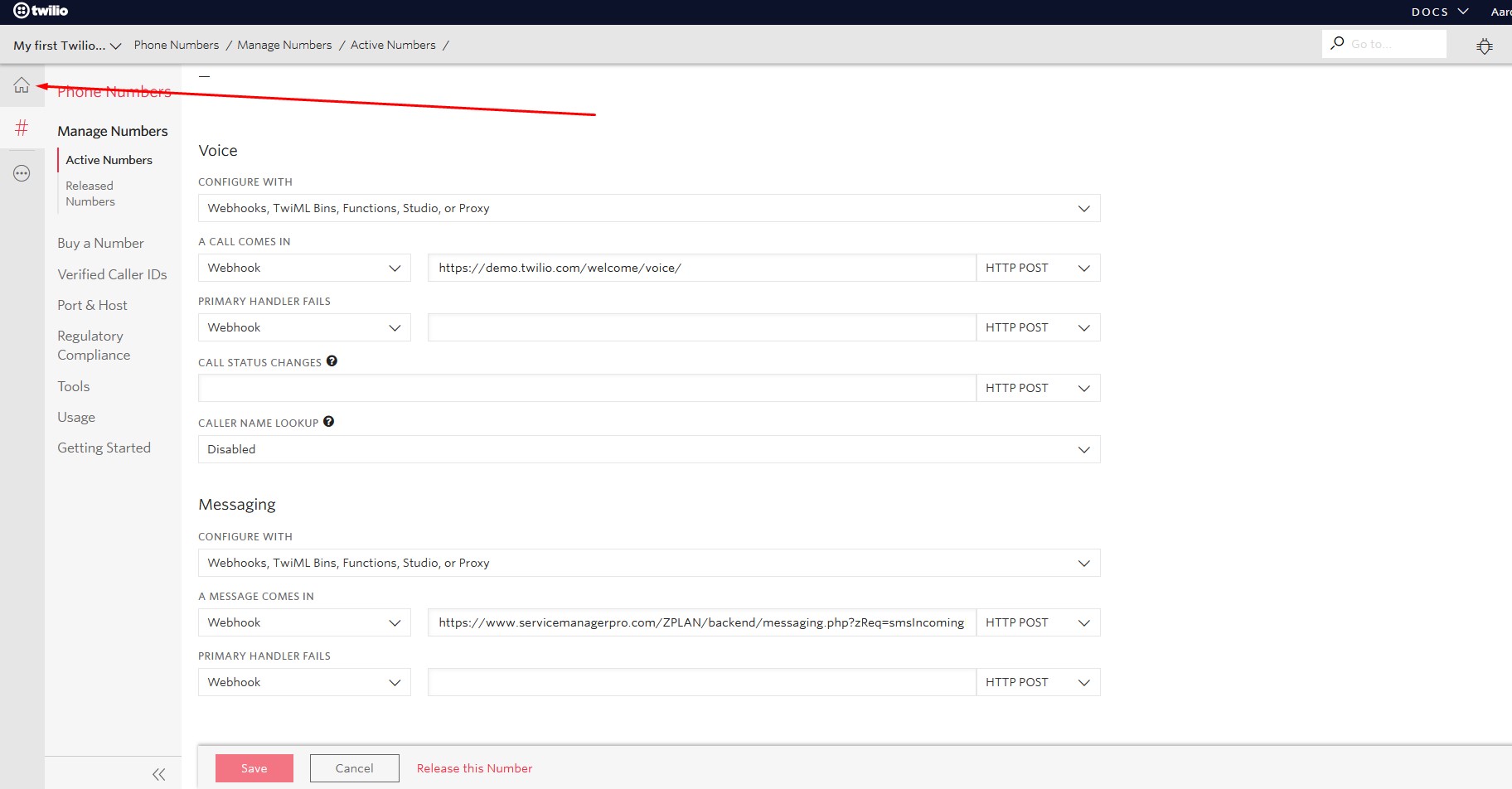
Step 17
Click Twilio Console Dashboard to navigate to your Dashboard.
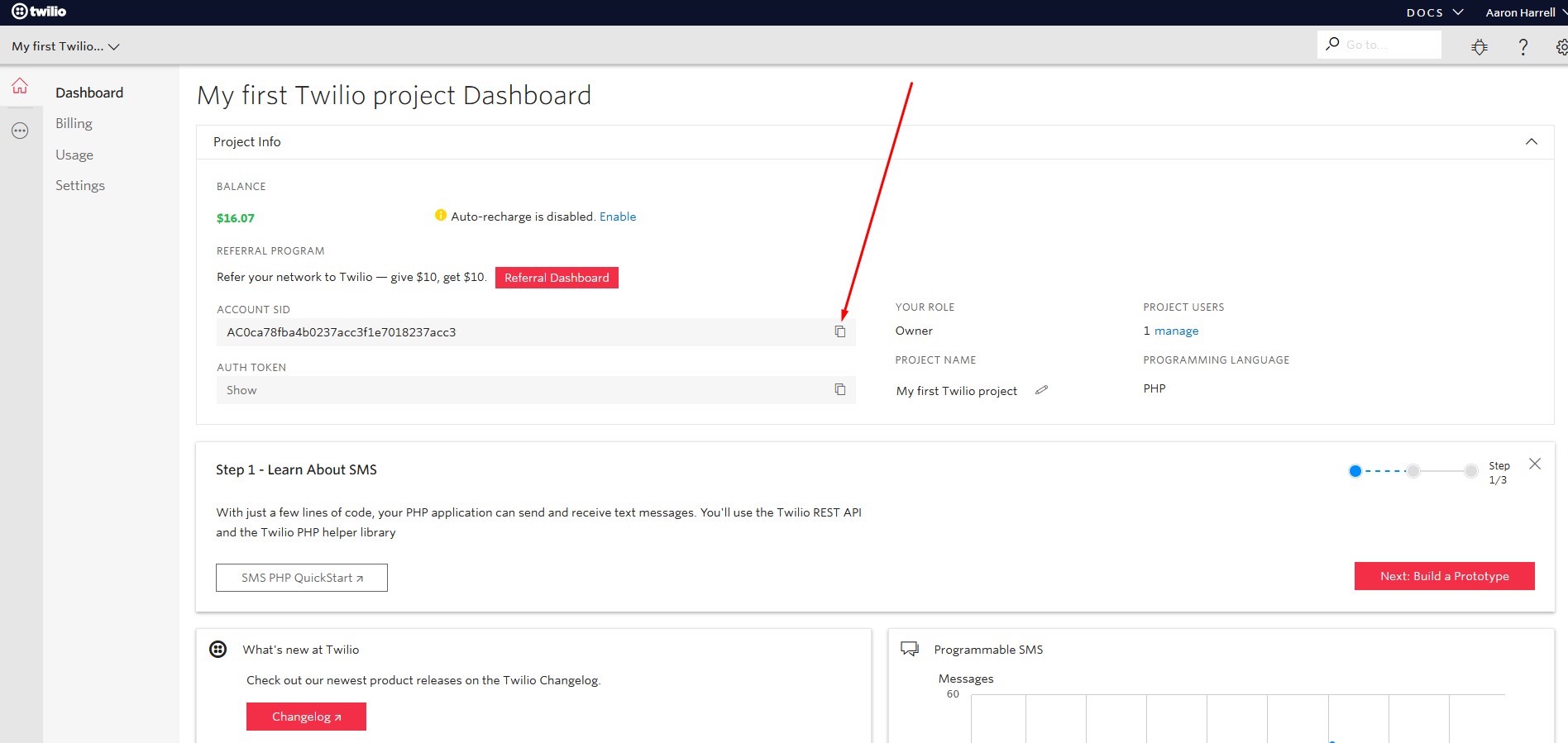
Step 18
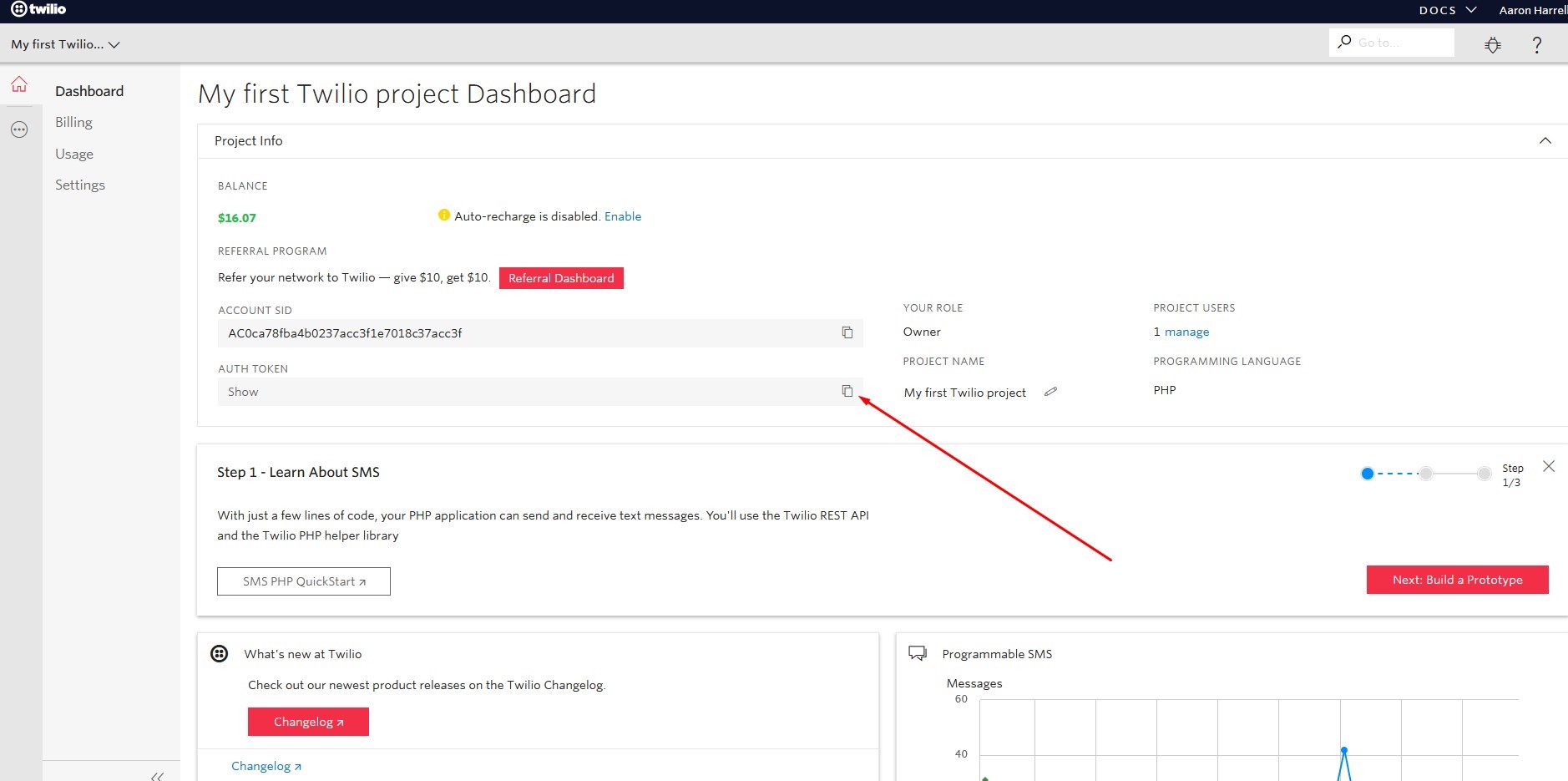
Find the “Account SID” and click Copy.
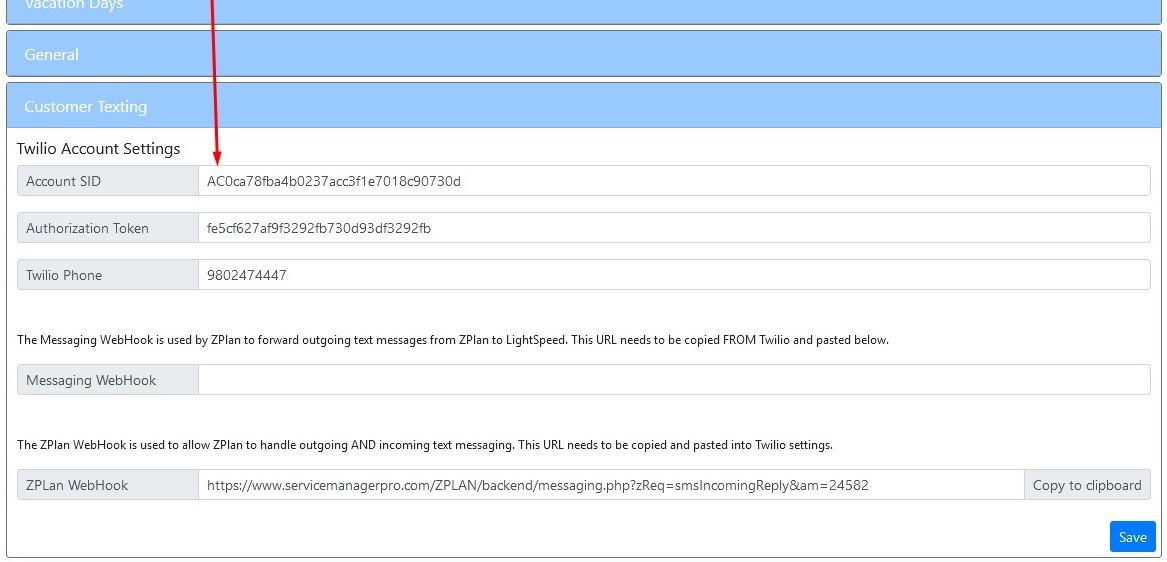
Step 19
While leaving Twilio OPEN in the browser window or tab, return to the ZPlan Dealer Settings (you should still have open) and right click and paste the Account SID info into “Account SID” in Zplan and click "Save".
Step 20
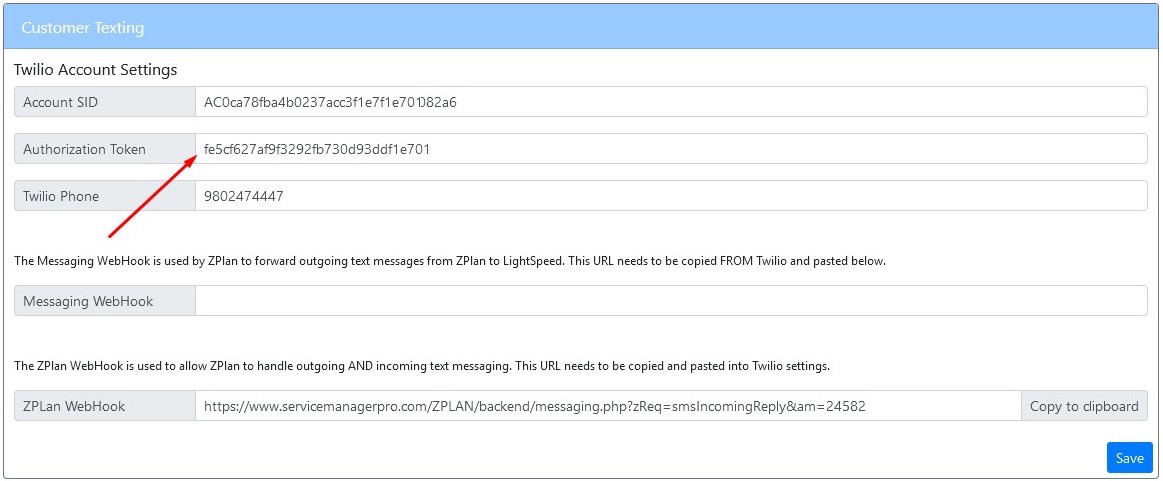
Go back to the Twilio tab/window and find the “Authentication Token” and click copy and paste this into the ZPlan Settings" Authorization Token".
Step 20
Click Save at the bottom right hand corner.
Step 21
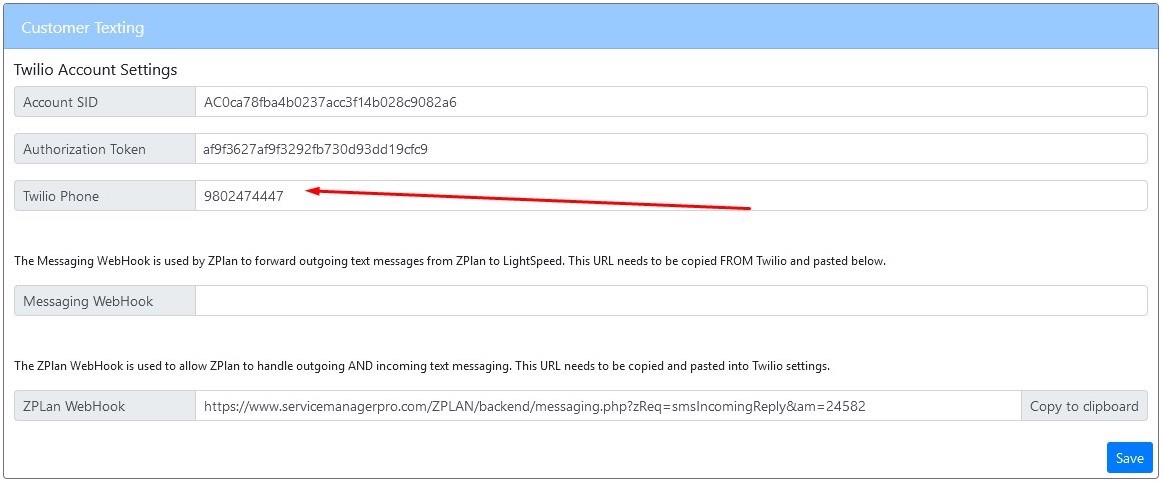
Enter your new Twilio phone number in the Twilio Phone field. Click Save at the bottom right hand corner.
Note: This number must be 10 digits with no dashes, etc.
Step 22
Click Done.
Your Twilio setup is complete!
If you are experiencing issues or are unable to send or receive texts after completing setup, contact us at 704-504-1731.
Or email us at CustomerService@ServiceManagerPro.com

